
MySuccess Graphic Designer Associate Course
Designed to empower anyone to create visual content — this highly practical, worldwide recognised study programme delivered by designers live incorporates the leading industry tools required to bring any idea to life without the need to be creative.



.svg?dpl=dpl_3Vh1H7AEeZyGCLWx8VbniRfV8FgP)


Next start
24th November 2026
60 Hrs
Schedule
Monday & Wednesday, 6.00PM till 9.00PM
Price
€1,695
or from €288/month
Funding available
Format
Part-time, Online Live
- See start dates
Course overview
So whether life as a graphic designer sounds like a dream or you’d like to gain the core design skills to craft your own projects freely — this is the secret to awesome success.
Firstly, you’ll dive into learning the fundamentals of graphic design through project-based learning & case studies. Next, you’ll be introduced to the exciting world of Adobe Photoshop to combine, retouch & manipulate images. You’ll then move on to create vector graphics with Adobe Illustrator, from icons to design packaging to digital graphics & social content. Finally, you’ll get your hands dirty with Adobe InDesign by learning how to create presentations, brochures, business cards, digital magazines, posters & interactive PDFs. All along, our industry experts will share workflows and best practices through experience, using a learn-by-doing approach.


Level 5 accredited award
Accredited as a Level 5 Award (5 ECVET) by the MFHEA in the MQF and the EQF.
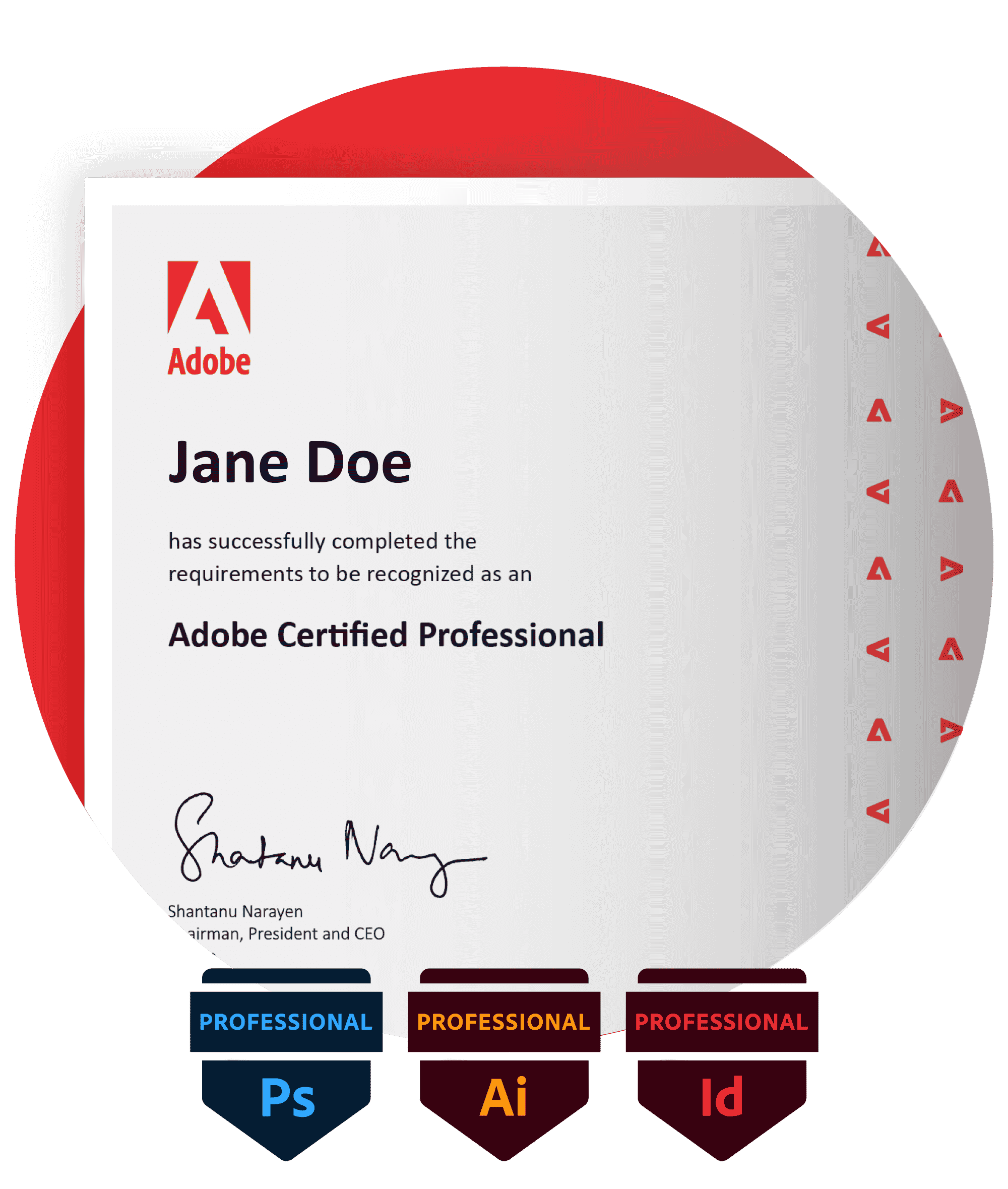
Adobe Professional certificate
Be able to achieve a globally recognised Adobe Professional certificate.
Build your own portfolio
Proudly showcase your own portfolio of work, built through project-based learning.
Objectives & outcomes
By the end of this exciting and rewarding course, you will be able to achieve a globally recognised Adobe Professional certificate and proudly showcase your own portfolio of work.
Interpret project requirements and design briefs
Identify and interpret basic project requirements and design briefs, understanding purpose, audience, and intended outcomes.
Apply core graphic design principles
Identify and apply core graphic design principles, including layout, colour, typography, hierarchy, and visual balance, when preparing digital and print-based designs.
Use Adobe Photoshop
Create, edit, and prepare digital images, applying essential tools and techniques for image adjustment, retouching, and composition.
Use Adobe Illustrator
Create and manipulate vector-based graphics, shapes, and illustrations suitable for digital and print use.
Use Adobe InDesign
Design and produce structured, multi-page layouts, applying typographic and layout controls.
Prepare and publish design outputs
Export and publish from Photoshop, Illustrator, and InDesign using appropriate formats and settings, following basic professional design workflows including file preparation, versioning, exporting, and archiving of design assets.
Design in response to communication goals
Apply design decisions in response to communication goals rather than purely aesthetic preference.
Foundational design literacy
Demonstrate foundational design literacy when collaborating with creative, marketing, or digital stakeholders.
Who Should Attend
Entry requirements
Proficiency in English Foundational digital skills 18 years of age or older No design experience necessary. Seriously. Online classes: Mac or Windows PC, WebCam, Stable Internet Connection, Adobe Creative Cloud Suite
Validated by industry leaders
Our graduates work at companies across Malta and beyond.
- mita
- SiGMA
- Betsson Group
- MeDirect
- Tipico
- PwC
- Casumo
- HILI Company
- 9H Digital
- Deloitte
- APS Bank
- Evolution
- GO
- LeoVegas
- FIAU
- Lo & Behold
- Bank of Valletta
- Microsoft
- Audi
- Booking.com
- Methode Electronics
.svg)
.svg)
.svg)


.svg)

.svg)

%20(white).png)
.svg)


.svg)
.svg)
%20(white).png)
.svg)
.svg)


In depth curriculum
A module-by-module look at what you will cover in the MySuccess Graphic Designer Associate Course, across 4 modules.
4 modules
Module 1
- Image File Formats
- Pixel vs Vector
- Resolution
- Colour Models
- Typography
- Useful Tools
Module 2
- Introducing The Workspace
- Getting familiar with the Tools Panel
- Switching tools using the keyboard
- Dark or Light Interface
- Navigating your image, tabs and windows
- Panels and workspaces
- Zooming in and zooming out
- Entering a custom zoom value
- Scrolling and panning images
- Rotating the view
- Working with tabbed documents
- Arranging documents
- Cycling between screen modes
- Customizing the keyboard shortcuts
- The Basics of Layers
- The Background layer
- Using a layer mask instead of deleting pixels
- Naming, hiding, creating, aligning and deleting layers
- Altering the stacking order of layers
- Layer transformations
- Aligning and distributing layers
- Changing the opacity of layers
- Grouping layers
- Merge or rasterise layers
- Flatten or Save As?
- Applying a clipping mask
- Filtering layers
- Best Practises
- Crop and Straighten
- The new and improved Crop tool
- Straightening a crooked image
- Using the Perspective Crop tool
- Automatically Cropping and Straightening scanned images
- The Rule of Thirds
- Extending Images
- Creating a border around your image
- Extending the canvas
- Using Content Aware Extend
- Using Content Aware Fill
- Using Content Aware Scale
- Adjusting Image Luminance
- Let there be Luminance
- The Auto commands
- Adjustments using Brightness/Contrast, Level and Curves
- Working non-destructively with adjustment layers
- Editing adjustment layers
- Isolating an adjustment with a layer mask
- Hello to the histogram
- Basics of the Shadows/Highlights command
- Adjusting Colours
- Assessing an image
- Identifying a colour cast and how to correct it
- Correcting a colour cast automatically
- Changing the colour balance using levels
- Changing the colour balance using Colour Balance
- Adjusting colour intensity with Vibrance
- The Hue/Saturation command
- The Undo and the History Panel
- Undo
- Utilising the History Panel
- Creating a Snapshot
- Creating a new Document from a History State
- Selections
- What are selections and why we use them?
- The Marquee tools
- Getting to know the Lasso tools
- Magic Wand and Quick Mask tools
- Adding to and subtracting from Selections
- Modifying Selections
- Saving and Loading Selections
- Meet the Channels Panel
- Masking
- Understanding what a mask is and does
- Working with Layer Masks
- Basic Retouching
- Using the Spot Healing Brush
- Using the Healing Brush
- Using the Patch Tool
- The ‘good old‘ Clone Stamp tool
- The Dodge and Burn tools
- Tips and Tricks
- Basic Brushes
- An overview of brushes and the Brushes panel
- Brush size and hardness
- Brush shortcuts
- Working with Colour
- The Swatches Panel
- The Colour Panel
- The Colour Picker
- Using the Eyedropper Tool to sample colour
- Creating simple gradients
- Simple compositing
- The various options for copying and pasting
- Dragging and dropping
- Placing an image
- Smart Objects and why when to use them
- Saving Your Work
- Saving images to PSD
- Saving images to TIFF
- File Formats and which to use
- Best practises
- Using the Save For Web utility
- The Colour Modes explained
- Getting to grips with text
- Horizontal and Vertical type tools
- Customising font properties
- The Character panel
- The Paragraph panel
- Managing text layers
- Working smarter with Bridge
- Opening and organising files
- Viewing, choosing and assessing images
- Adding Metadata and Keywords
- Working with Batches and Actions
- Collections and Smart Collections
- Labelling and Filtering
- Camera RAW
- Difference between RAW and compressed images
- Intro to Adobe Camera RAW
- Camera RAW Filter in Photoshop
- Retouching
- Working on a actual retouching projects, non-destructively
- Scaling tips
- Working with all the Liquify tools
- Improve body shape and detail
- Adjusting Image Luminance
- Editing with the histogram
- Customizing a Levels adjustment
- Understanding the Gamma value
- Making channel-by-channel adjustments
- Simulating a Grey Card
- Customising a Curves adjustment
- Colour adjustment by the numbers
- Tips and tricks
- Shadows/Highlights
- Working non-destructively with Shadows/Highlights
- Shadows Highlights techniques
- The Radius values explained
- Enhancing the effects of Midtone Contrast
- Masking a group of Smart Filters
- Working with Type
- Creating point text
- Choosing fonts and type style tricks
- A run through of the Character and Paragraph panels
- Kerning and tracking characters
- Creating and editing area text
- Selecting and formatting paragraphs
- Using Paragraph Styles
- Using Character Styles
- Setting text inside a custom path
- Creating text along a path
- Masking text into image elements
- Anti-aliasing explained
- Working with Vectors
- The other vector-based layer
- Drawing a dashed or dotted border
- Drawing and aligning custom shapes
- Combining simple shapes
- Cropping and merging shapes
- Adjusting Live Shape attributes
- Working with the pen tool
- Layer Styles and Effects
- Applying and creating Layer Styles
- Loading and customizing Layer Styles
- Merging and saving Layer Styles
- Copying Layer Styles
- Depth, contour, and texture
- Imparting depth with a layer effect
- Creating shadows
- Bevel and Emboss
- Modifying a layer’s effects
- Saving custom default settings
- Creating a custom contour
- Global Light and rasterizing effects
- Surface contour
- Adding textures
- Scale, Rotate, Skew, and Warp
- Meet the transformations
- Transformation and Smart Objects
- Content aware Move
- Content Aware Extend
- Rotating a layer with Free Transform
- Scale, duplicate, repeat, distort, perspective, and skew
- Working with Greyscale and Black & White
- Convert to black and white
- Several ways to convert to greyscale
- Mixing a custom black-and-white image
- The Black & White command
- Customizing the Black & White settings
- Black & White or Channel Mixer
- Creating a sepia tone
- Selections and Masking
- Adding to and subracting from Selections
- Feathering a selection
- Refine Edge and Refine Mask
- Working with the Mask panel
- Modifying Selections
- Saving and Loading Selections
- Viewing a mask with or without its image
- Painting directly inside an alpha channel
- Correcting fringes around a masked layer
- Turning a layer into a knockout
- Selecting with the Colour Range command
- Selecting Skin Tones
- Selecting a complex image with Colour Range
- Refining a selection in the Quick Mask mode
- Sharpening Details
- Understanding the Smart Sharpen filter
- Understanding the Unsharp Mask filter
- Assessing the best sharpening practises
- Sharpening with High Pass
- Sharpening using Smart Filters
- Noise and Detail
- The Noise/Details balancing act
- Introducing the Reduce Noise filter
- Brushing away blur and sharpening
- Creating texture by adding noise
- Correcting noise in Camera Raw
- Working with the Median filter
- Saving for the Web
- Producing a suitable JPEG image
- Producing a suitable GIF image
- Working with colours to reduce file size
- PNG and PNG
- Viewing results in a browser
- Printing and Outputting
- The main print options
- Description and printing marks
- Applying bleed
- The Colour Settings
- Previewing an image at print size
- Creating contact sheets
- Creating a web gallery
The total learning hours for this module, including contact, self-study, and practice hours, is 50 hours.
Module 3
- Introducing The Workspace
- Getting To Know Illustrator
- Setting Up a Document
- Familiarising With Tools
- Working With Selection Tools
- Creating, Editing Shapes & Aligning
- Use of Open Paths
- Aligning Shapes & Paths
- Applying Effects
- Working With Symbols
- Working With Brushes
- Use of Preset Brushes
- Customizing Own Brushes
- Transforming Objects
- Working With Transform Tool
- Drawing With The Pen Tool
- Color & Painting
- Working With Blob Brush
- Working With Gradient Tools
- Working With Mesh Tool
- Blending Colors & Shapes
- Working With Type
- Text Manipulation
- Working With Perspective Drawing
- 3D Effects In Illustrator
- Converting 2D to 3D Design
- Creating 3D Text
- Exporting File For Animation
The total learning hours for this module, including contact, self-study, and practice hours, is 50 hours.
Module 4
- Introducing The Workspace
- Getting To Know InDesign
- Setting Up a Document
- Familiarising with Tools
- Working With Pages & Objects
- Page Settings
- Applying Effects
- Styling Frames
- Setting Images in Frame
- Flowing & Editing Text
- Paragraphs
- Special Text
- Page Number & Footers
- Font Styles Customization
- Forms & Tables
- Working With Typography
- Text Design Concepts
- Text, Images & Paths
- Working With Styles & Color
- Gradients & Colors
- Transparency
- Importing & Modifying Graphics
- Frames & Images
- Interactive Gallery
- Printing & Exporting
- Creating Adobe PDF Files
- Forms
- Interactive Documents
- Creating & Exporting An E-Book
The total learning hours for this module, including contact, self-study, and practice hours, is 25 hours.
Request more details to view the full course syllabus, or book a call to speak with an education advisor.
Your global certification
Upon completion of the Graphic Designer Associate course, students are encouraged to sit for the Adobe Certified Professional exams (formerly known as Adobe Certified Associate ACA) in Photoshop, Illustrator & InDesign within a maximum timeframe of 6 months. Each exam is 50 minutes long and consists of ~33 multiple-choice and live-in-the-application questions. The passing score for each exam is 70%. The exam is hosted at ICE Malta with the result being made available straight after the exam session. Once a student achieves a pass in all three applications and completes the course successfully, they will achieve the EQF/MQF Level 5 certificate.
Learning experience
Every step of the way you receive support from your educator, your classmates and our dedicated student experience team. That is a promise.

Learning Platform
A courseware kingdom full of presentations, playbacks, quizzes & practice exercises accessible 24/7.

Taught by industry expert
Learn live with seasoned professionals in a unique, small-class environment.

Globally recognised certification
Worldwide recognised certifications by top tech brands which prove that you’re industry ready.

Student Experience Support
A helping hand before, during and after your learning journey.

Post-course educator support
Personalised feedback to help you achieve your goals for an additional 6 month window.

Practical learning
Hands-on exercises and real world projects to get you industry ready.
Pricing & funding. Simple, transparent.
Pay in one go or spread the cost, and check whether you can claim part of your fees back.
Pay monthlyMost flexible
From
€288per month
No banks. No interest. Flexible monthly payments.
More info on funding
Get your fees back
A government scheme can refund part of the fee. The amount depends on your situation, so this is the most you can receive.
MySkillsUp to 80% back

- You pay
- €1,695
- Refund if employed, up to 80%
- €1,356
- Cost after refund, as low as
- €339
- Refund if unemployed, up to 100%
- €1,695
Reimbursed by Jobsplus after you complete the course, up to €5,000. Not available to self-employed applicants.
How MySkills works
Convince your boss to sponsor your growth
Employers in Malta can recover part of the cost of training through the Investing in Skills (IIS) scheme.
What you’ll get
- Training by an Adobe Certified Educator
- Detailed Educator Presentations
- Official Adobe Courseware (Format: Digital)
- Official Adobe Practice Tests
- Official Adobe Exams (x1 Sit Per Module)
- 6-Months Post-Course Educator Email Support
- 7-Day Lesson Playback (Rewatch On-Demand)
Starting dates
Our classes do not have an enrolment deadline, but demand is high and they fill up ahead of time because we purposely limit class sizes to keep every class personal.
- Enrol nowOnline livePart time€1,69580% Course Fees Back
Graphic Designer Associate
24th November 2026
- Tue & Thu, 6:00PM till 9:00PM
- 60 Hrs
Loved by students & brands
Mr AgiusGraphic Design It was a great experience. I have learnt the basics of P/Shop from here and have already started using it for my work (at a hotel) and for my personal use. Best of luck, and thanks!
Mr CallejaGraphic Design Brilliant friendly environment, hassle free, friendly staff and very open forum like discussion based approach to education makes for a fun learning experience that challenges one's ability to perceive and learn.
Mr XuerebGraphic Design A great experience with well experienced lecturers in the field.
Mr BorgGraphic Design A great experience of learning what you want, great and very informal staff and good-equipped labs. Would recommend it to my friends for sure !
Mr EllulGraphic Design My Experience at ICE was very nice. Tutors and all the staff was really help full and always tried to do there best to give us the best teaching. Strongly recommend to anyone.
Mr UrpaniGraphic Design It was fun and informative. I had a great time!
Ms StoraceGraphic Design Really enjoyed it, in fact, I'm taking the top-up course and considering future courses in different areas
Ms CassolaGraphic Design I really enjoyed attending the course at ICE & I found the lecturer and people at admin very professional
Ms CamilleriGraphic Design I enjoyed every lesson, sometimes learning with a fun atmosphere makes you not see a course like an errand.
RachelMySuccess Graphic Designer Associate The experience was very positive, and I would definitely enrol for another course at ICE Malta. The educator was well informed and was always available to help out both during lessons and after classes.
ChristopherMySuccess Graphic Designer Associate I enjoyed the course especially because of the small classroom philosophy and individual attention.
LornaGraphic Design Educators are very experienced and knowledgeable about the subject being taught. Any questions asked were always answered clearly. Apart from this the school showed flexibility even when a student was not able to attend some classes. Well done.
The Graphic Designer Associate study programme is accredited as a Level 5 Award (5 ECVET), titled 'VET Award for Graphic Designer Associate with Adobe Creative Suite' by the Malta Further and Higher Education Authority (MFHEA) in the Malta Qualifications Framework (MQF) and the European Qualifications Framework for lifelong learning, with a pass rate of 80%. The total learning hours for this award, including contact, self-study, practice and assessment hours is 125 hours. The awarding body is the Institute of Computer Education Ltd (ICE Malta), licensed as a Further & Higher Education Institution by MFHEA under license no. 2011-TC-010.
You might also like
All courses







Frequently asked questions
Everything you need to know about the MySuccess Graphic Designer Associate Course. Can’t find your answer? Speak to an advisor.
Yes. Thanks to ICE Malta’s Easy Payment Scheme, you can design an interest-free monthly payment plan to cover your tuition. No banks involved.
For the online classes: Mac or Windows PC, WebCam, Stable Internet Connection, Adobe Creative Cloud Suite. In the ideal scenario students should have a computer setup with two screens, one where you can follow the lesson from (which can even be your mobile) and your main screen which you will use for practical learning. This will guarantee that your learning experience is really powerful.
Yes, we accept international students. However, some courses are license-restricted to residents of the Maltese Islands. Most of our courses are delivered online live, but if you wish to enroll in an on-campus course, you are responsible for obtaining a Student Visa.
The collection of MySuccess study programmes together with Google, Adobe, Cisco, Microsoft, LPI, Autodesk, IAPP & Digital Marketing Institute certifications are worldwide recognised certifications.
Meet with an expert
Not sure this is the right course? Book a free call with an education advisor.
MySuccess Graphic Designer Associate Course
Next start 24 Nov 2026 · €1,695